
So, you're thinking about tackling your inventory with a spreadsheet. Good. An inventory Excel template is simply a spreadsheet you build to track stock levels, what's selling, and when you need to reorder—all without paying for expensive software. It’s hands-down the best starting point for a new D2C brand. Why? It's free, and you have total control over your data, which is perfect for getting a real grip on your core inventory metrics right from the start.
Before you even think about complex, subscription-based platforms, your first strategic move should be a humble spreadsheet. This isn’t about being old-school; it’s about building a rock-solid foundation. An inventory on excel template forces you to get your hands dirty with the financial pulse of your business, giving you a clear, unfiltered view of how everything actually works.
This manual process helps you genuinely understand the flow of your products. You'll learn to meticulously track every single unit from your supplier all the way to your customer, and in doing so, you'll gain an intuitive feel for your sales cycles and which products are actually performing.
Starting with Excel is about more than just saving money. It offers complete control and a deep learning experience that will pay off for years as your business scales. The initial setup forces you to think critically about what data really matters to your specific brand.
Here's what you gain: * Total Customization: You build a system that perfectly fits your business. As your product line changes, you can add or remove columns without waiting for a software update. * No Upfront Investment: There's no monthly subscription fee draining your bank account. That's crucial capital you can put back into marketing or product development. * Mastery of Core Metrics: You’ll become an expert in tracking the numbers that matter, like Cost of Goods Sold (COGS), inventory turnover, and sales velocity.
This foundational knowledge is priceless. It might be surprising, but plenty of established businesses still rely heavily on spreadsheets. Even as we head into 2025, a staggering 63% of supply chain managers continue to use Excel for inventory management. It just proves how accessible and powerful it can be for brands tracking stock without a huge budget.
Think of your first Excel template as your business's financial diary. It records every decision, every sale, and every restock. Over time, it creates a rich history you can analyze to make much smarter purchasing decisions down the road.
Ultimately, this entire process sets you up for success when you are ready for more advanced systems. By understanding the manual mechanics, you'll be far better equipped to choose the right software later. This hands-on experience helps you distinguish between features that are essential and those that are just nice-to-haves.
When you're ready to explore those bigger tools, our guide on the best inventory management tools for small business can help. You'll be making that first big software investment from a place of knowledge, not guesswork.
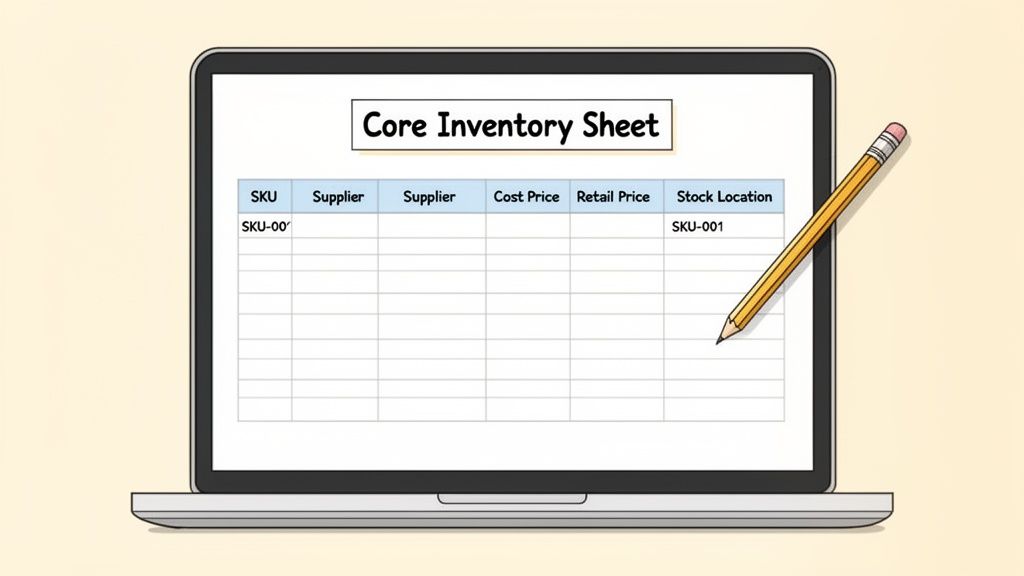
Alright, this is where we roll up our sleeves. Creating a solid inventory on excel template is less about just listing products and more about building the operational backbone for your entire Shopify store. The goal here is a clean, scalable sheet that won't give you headaches down the road. Get this right, and your data becomes a reliable asset, not a source of constant frustration.
Let's walk through the essential columns that will form this foundation. Think of these as the non-negotiables—the data points that give you real clarity and control over your stock. Nailing these from the very beginning is the secret to accurate tracking.
The real power of your spreadsheet is in its structure. If your columns are vague or inconsistent, you’ll end up with a mess of data that's almost impossible to analyze. A clean setup, on the other hand, makes everything from stock counts to financial reporting a breeze.
Here are the core columns every D2C brand absolutely needs:
This basic structure gives you a fantastic snapshot of each item in your catalog, from its unique identifier to its financial value.
Once the basics are locked in, a few extra columns can transform your template from a simple list into a powerful operational tool. These are the columns that help you manage the physical flow of your inventory and make much smarter purchasing decisions.
Consider adding these to your sheet:
Pro Tip: Don't try to boil the ocean from the start. Begin with these core columns. You can always add more advanced fields like "Reorder Point" or "Safety Stock" later as you gather more sales data and get a better feel for your inventory cycles. The key is to build a functional base you’ll actually use consistently.
This level of detail might seem small, but it's what separates a useful tool from a digital junk drawer. While the global inventory management software market is expected to grow with a 6.4% CAGR from 2025 to 2034, many of the most successful brands still start right here. Mastering a basic inventory on excel template gives you the foundational knowledge you’ll need to eventually graduate to more advanced systems. You can find more insights about supply chain trends from recent research to stay ahead of the curve.
This simple but effective layout shows what’s possible—it includes not just stock counts, but also reorder levels and item status, turning a static list into a proactive management tool.
This is where the magic happens. Your static list of products is about to become a dynamic, intelligent tool that does the heavy lifting for you. By adding a few key formulas, your inventory on excel template starts automating tedious calculations and surfaces critical insights at a glance.
Forget manually crunching numbers every week. These formulas will turn your spreadsheet from a simple tracker into a powerful decision-making dashboard. The real goal here is to shift from just tracking what you have to proactively managing what you need. That small change is what separates brands that constantly struggle with stockouts from those that always seem to have their bestsellers ready to ship.
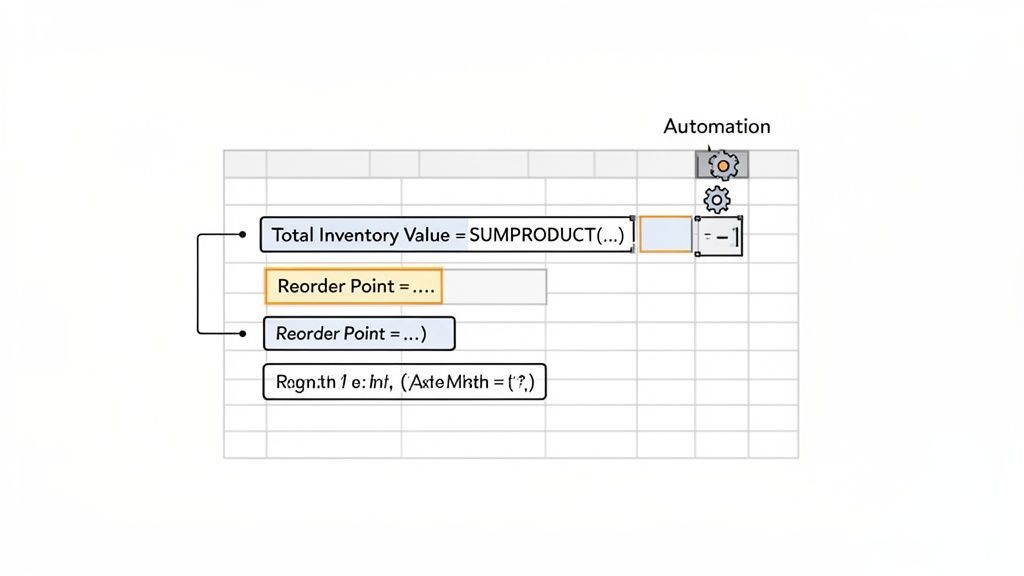
Here's a quick look at the formulas we're about to build and why they're so important for your store's health.
| Metric | Excel Formula Example | Why It Matters for Your Store |
|---|---|---|
| Total Inventory Value | =SUMPRODUCT(D2:D100, E2:E100) |
Instantly tells you how much capital is tied up in stock, which is crucial for financial planning and understanding your assets. |
| Reorder Point | =(H2*I2)+J2 |
Proactively flags when it's time to reorder a specific product, helping you avoid costly stockouts and lost sales. |
| Safety Stock | =(K2*L2)-(H2*I2) |
Calculates a data-driven buffer to protect you against unexpected demand spikes or supplier delays, building resilience into your supply chain. |
These formulas are the engine of your inventory template. Let's dive into how to set up each one.
One of the first numbers you need to know is the total value of the inventory you're holding. This isn't just a "nice-to-know" metric; it’s essential for financial reporting, budgeting, and seeing exactly how much of your cash is sitting on shelves as physical goods.
Instead of the painful process of multiplying each row's quantity by its cost price and then adding it all up, the SUMPRODUCT function does it all in one go. It’s clean, efficient, and error-proof.
Let's say you have these two columns:
* Quantity in Stock (Column D, from D2 to D100)
* Cost Price (Column E, from E2 to E100)
The formula is beautifully simple:
=SUMPRODUCT(D2:D100, E2:E100)
Drop this into a prominent cell at the top of your sheet, and you've got an instant, accurate valuation of your entire stock. As you update your quantities, this number will adjust automatically. Studies show businesses can lose up to 30% of revenue from inefficient practices—not knowing your stock's value is a major blind spot you just closed.
A reorder point is the specific stock level that triggers you to place a new purchase order. When a product's inventory drops to this number, it’s the signal to restock before you sell out. Trying to eyeball this for every single product is a recipe for disaster.
The standard reorder point formula is: (Average Daily Sales x Average Lead Time in Days) + Safety Stock
Let's translate that into your Excel sheet. If you have these columns:
* Average Daily Sales (Column H)
* Supplier Lead Time (Days) (Column I)
* Safety Stock (Column J)
For a product in row 2, the formula in your "Reorder Point" column would be:
=(H2*I2)+J2
Once you've entered it for the first product, just drag the formula down the column. Done. Now your template is actively telling you when to take action, helping you prevent that dreaded "out of stock" notice that sends customers straight to your competitors.
By automating reorder points, you shift from a reactive "Oh no, we're almost out!" mindset to a strategic, forward-looking operation. This simple calculation is one of the first major steps toward building a resilient supply chain.
Safety stock is your cushion. It's the extra inventory you hold to protect yourself from stockouts caused by surprises, like a sudden sales spike from a TikTok video or an unexpected delay from your supplier.
While it’s a critical metric, many founders either guess at a number or skip it altogether. A formula gives you a data-driven starting point.
A common formula for safety stock is: (Max Daily Sales x Max Lead Time) - (Average Daily Sales x Average Lead Time)
This calculation essentially prepares you for a worst-case scenario. Assuming your sheet has columns for:
* Max Daily Sales (Column K)
* Max Lead Time (Days) (Column L)
* Average Daily Sales (Column H)
* Average Lead Time (Days) (Column I)
For the product in row 2, your safety stock formula would be:
=(K2*L2)-(H2*I2)
This gives you a calculated buffer to handle variability without letting customers down. For a deeper dive into different methods, check out our complete guide on how to calculate safety stock. Mastering this protects your revenue and brand reputation when things get unpredictable—it’s the difference between a minor hiccup and a major sales catastrophe.
Rows and columns of numbers are a great start, but they don't exactly scream "take action!" on their own. The real magic of a well-built inventory template happens when you turn that raw data into quick, visual signals. This is how you stop just logging inventory and start making smarter, faster decisions for your Shopify store.
The idea isn't to build some ridiculously complex business intelligence dashboard. Far from it. We're just going to use a couple of simple but powerful tools already inside Excel to make your most important metrics impossible to miss. A quick splash of color or a simple chart can instantly tell you what needs your attention right now.
One of the most powerful, yet criminally underused, features in Excel for inventory management is Conditional Formatting. This handy tool automatically changes how a cell looks—like its background color—based on what’s inside it. For us, its most powerful use is creating a blaring, can't-miss-it alert for low-stock items.
Think about it: you'll never have to manually scan your "Stock on Hand" column again. With this set up, any product that drops below its reorder point will instantly turn red, begging you to do something about it.
Here’s the quick and dirty way to get it running:
Home tab on the Excel ribbon, click Conditional Formatting, then hover over Highlight Cells Rules, and pick Less Than....H2 if that's where your first reorder point lives).That's it. Excel now automatically checks each cell in your stock column against the reorder point in the same row. If the stock is lower, the cell lights up. It's a dead-simple visual system that stops reorder signals from ever slipping through the cracks. Given that around 34% of businesses admit to accidentally selling an out-of-stock product, this rule is your first line of defense.
Conditional formatting is perfect for those immediate, in-the-moment alerts, but charts are what help you see the bigger picture. You don't need to mess with complex pivot tables; a basic line or bar chart can give you a crystal-clear view of sales velocity for your most important SKUs. It’s the easiest way to see which products are picking up steam and which are starting to fizzle out.
Let’s say you’re tracking weekly sales for your top five products. A simple line chart makes this data incredibly easy to digest.
This kind of visual comparison makes spotting patterns almost effortless. You might see one product consistently outselling the others, or maybe you'll notice a seasonal spike for another. This is the exact kind of insight that helps you plan your promos and purchasing with way more confidence.
Visualizing sales data is like switching from a text-based map to a GPS. Both get you there, but one shows you the traffic, roadblocks, and best routes in real-time, making the journey much smoother.
Finally, you can take a small step from reactive tracking to proactive planning with a basic forecasting formula. Excel's FORECAST.LINEAR function is a surprisingly useful tool that uses your past sales data to make an educated guess about a future value.
Imagine you have monthly sales data for the last six months and you want to get a rough idea of what sales will look like next month.
The formula is structured like this:
=FORECAST.LINEAR(target_date, known_ys, known_xs)
target_date: The future period you want to predict (e.g., Month 7).known_ys: Your historical sales data (the range of cells holding your sales numbers for Months 1-6).known_xs: Your historical time data (the range of cells with the month numbers, 1 through 6).Sure, this is a simple forecast—it won't account for complex seasonality or sudden market shifts. But what it does provide is a data-driven estimate that beats a gut-feeling guess every single time. It's a great way to start thinking about future demand, turning your inventory template into a much more forward-looking tool.
Your Excel template is a fantastic internal command center, but it's only truly powerful when it syncs up with your Shopify store. Making that connection happen is all about translating your spreadsheet into a language Shopify can understand: a perfectly formatted CSV file.
Get this right, and you can update hundreds of products in minutes. Get it wrong? You'll find yourself stuck in a frustrating loop of upload errors. Shopify is notoriously picky about how it reads CSV files. A single misplaced column header or an odd SKU format can cause the whole import to fail, leaving you to play detective.
This flow shows how your Excel data gets turned into real, actionable insights for your store—from data entry to low-stock alerts and sales charts.
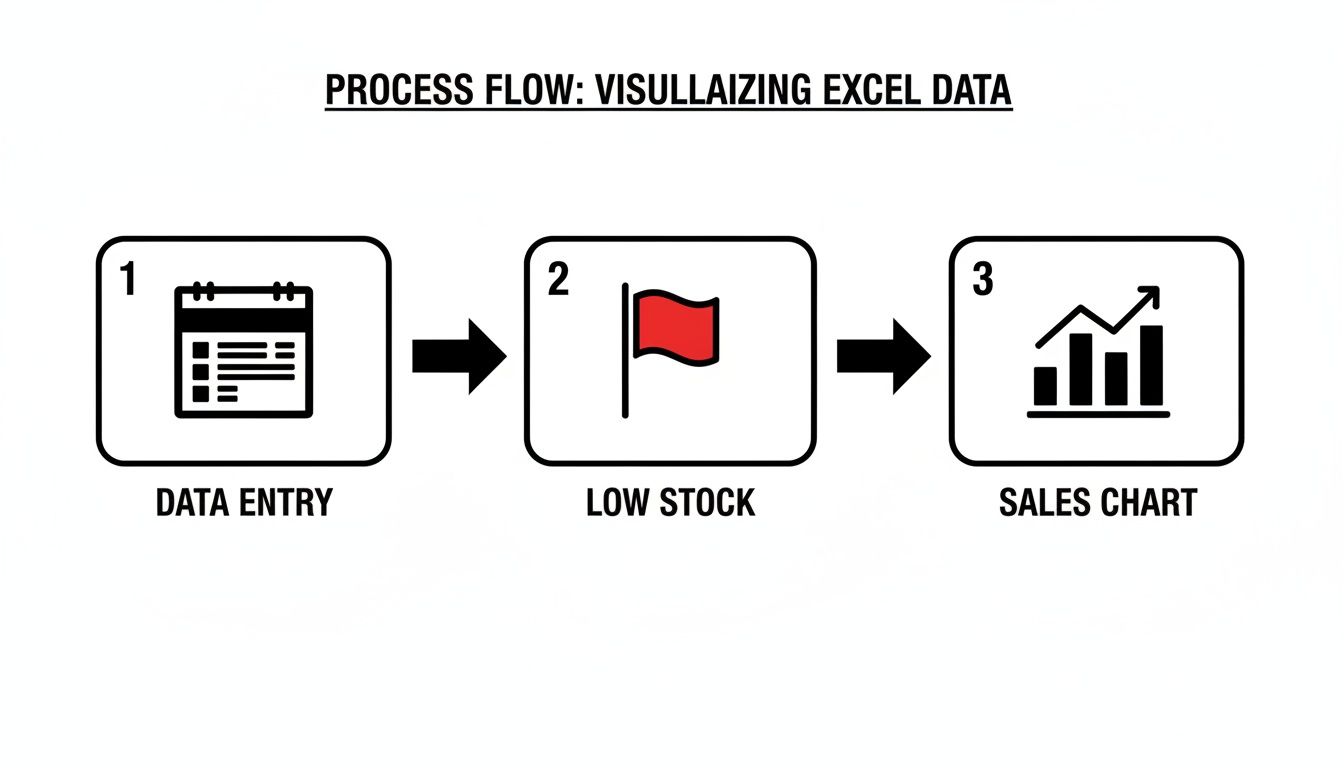
This is the core job of your template: turning raw numbers into clear signals for reordering and smarter planning.
Before you even think about hitting "export," your spreadsheet needs a quick cleanup to meet Shopify's strict rules. Your beautiful, formula-packed template has to be temporarily stripped down to the bare essentials that Shopify recognizes.
Here’s a quick checklist I run through myself:
* Match Column Headers Exactly: Shopify is looking for specific names like "Handle", "Title", and "Variant SKU". Your export file's first row must use these names perfectly. A classic mistake is using "Product Name" instead of "Title".
* Create a Shopify-Specific Tab: Don't mess with your main inventory sheet. Instead, I always recommend creating a new tab in your workbook. Use formulas like VLOOKUP or just copy and paste the values you need into a Shopify-ready format. This keeps your master template safe and sound.
* SKU and Handle Consistency: The "Handle" is the unique name for a product in its URL. Make sure all variants of one product share the same Handle, but that each has a unique "Variant SKU". This mismatch is probably the #1 cause of import headaches.
Once your data is clean and formatted, exporting is easy. In Excel, just go to File > Save As and choose CSV (Comma delimited) (.csv). This simple step converts your sheet into the flat file that Shopify’s importer can actually read.
I’ve seen founders waste hours troubleshooting CSV uploads. It almost always boils down to one of a few common, easily avoidable mistakes. Knowing what to look for will save you a world of pain.
Don't forget that human error is a huge factor here. Studies have shown that a staggering 90% of spreadsheets have mistakes, often from simple typos. Those tiny errors get magnified when you're trying to import data.
Keep an eye out for these classic pitfalls: 1. Invisible Characters: Copying and pasting from other places can sneak in hidden spaces or weird characters. A SKU might look perfect but will fail validation because of something you can't even see. 2. Incorrect Data Types: Make sure columns that should be numbers (like your inventory count) don't have any text or symbols in them, and vice versa. 3. Using an Outdated Template: Shopify tweaks its CSV format from time to time. Always download a fresh product CSV template from your Shopify admin to be certain your columns are up to date.
The real cost of manual inventory management isn’t just the time you spend typing in numbers. It’s the hours you lose trying to fix preventable errors. A clean, disciplined process for your CSV exports is your best defense against that wasted time.
Of course, tracking inventory is just one piece of the puzzle. It all connects to how to effectively fulfill orders on your Shopify store, which is where your accurate data really pays off.
If you find this manual import/export cycle is becoming a major bottleneck, it might be a sign that it's time to explore the best inventory management software for Shopify. These tools can automate the entire process and give you back your time.
Every successful brand eventually hits a wall with its foundational tools. That inventory Excel template was a lifesaver when you were starting out, but as your business scales, its limitations can go from minor quirks to major roadblocks. The same manual updates that once gave you a hands-on feel for your business are now eating up hours you should be spending on marketing and product development.
If you're constantly fighting stockouts on your bestsellers or finding dead stock that’s been tying up cash for months, those are the warning signs. The spreadsheet that was once your command center is quickly becoming a source of friction. The sheer amount of repetitive data entry, the risk of broken formulas, and the constant threat of human error start to outweigh the benefits of simplicity.
The shift happens quietly. It's when the time you spend maintaining your inventory sheet is longer than the time you spend analyzing what it tells you. Your growth is creating more data than a spreadsheet can realistically handle, forcing you to make reactive decisions instead of proactive plans.
Here are a few clear signs it’s time for an upgrade:
When your spreadsheet creates more questions than it answers, it’s no longer serving you. The goal is clarity, not complexity. If you're bogged down in manual work, you're missing the bigger picture of your business's health.
This is the logical point to move to an AI-powered inventory analytics platform. Instead of wrestling with complex formulas, these tools give you predictive forecasting and automated reorder suggestions right out of the box. As you think about moving beyond Excel, understanding AI artifacts can shed light on what these more advanced, automated solutions are capable of. It’s not about ditching the foundation you built; it’s about building on top of it with smarter technology that fuels profitable growth, minus the manual grind.
When you're deep in the weeds of an inventory spreadsheet, a few common questions always seem to pop up, especially for Shopify store owners trying to get a handle on their stock. Let's tackle some of the most frequent ones I hear.
Yes, and you absolutely should. The trick is to treat every single variant as its own unique product. This means assigning a unique SKU to each one (e.g., TSHIRT-RED-S, TSHIRT-RED-M).
Give each of those SKUs its own dedicated row in your template. Doing it this way allows you to see exactly what’s happening with every specific size and color combination. You can track stock levels, sales, and reorder points independently, which is crucial for preventing stockouts on your best-selling options.
For a small but busy Shopify store, my advice is to make it a daily habit. Seriously. Taking a few minutes at the end of each day to reconcile your sales and any new stock arrivals will save you from the massive headache of overselling.
If your sales volume is on the lower side, you can probably get away with updating it two or three times a week. The most important thing is consistency. An outdated spreadsheet is the number one reason this whole system falls apart.
The single biggest mistake I see is inconsistent data entry. Using slightly different product names like 'Black Tee' versus 'Black T-Shirt' or messing up an SKU format creates duplicate entries that completely break your formulas.
Be ruthless about your data format from day one. Stick to it religiously. This discipline is what turns your spreadsheet from a frustrating mess into a reliable tool that plays nice with your Shopify CSV imports.
When your spreadsheet starts feeling like it’s creating more work than it saves, that's your cue to look for a smarter way. Tociny.ai uses AI to deliver predictive forecasting and automated reorder suggestions, freeing you up to focus on growing your brand. Get early access and see how AI-powered analytics can transform your inventory planning.
Tociny is in private beta — we’re onboarding a few select stores right now.
Book a short call to get early access and exclusive insights.