Dealing with an out of stock Shopify item is about way more than just updating a number in your inventory. It’s a make-or-break moment for your customer relationship. An empty product page can kill a sale on the spot, chip away at brand trust, and send an eager buyer straight to your competition.
It only takes one click.
That "Sold Out" badge isn't just a temporary hiccup. It’s a dead end in the customer's journey, and the fallout goes far beyond one lost transaction. Every time a potential buyer lands on an unavailable product, their confidence in your brand's reliability takes a hit. Their first thought isn't, "I'll wait." It's, "I'll find it somewhere else."
This problem gets amplified when you consider just how big the Shopify world is. You're competing with around 5.8 million live stores, all part of an ecosystem that recently pulled in $87.8 billion in a single quarter. In this crowded marketplace, a minor stockout doesn't just mean you lose a sale—you're literally handing it to a rival who was ready.
The financial sting isn't just about the initial missed revenue. Let’s look at the other ways it hurts:
A stockout basically tells your customer you didn't see them coming. When this happens repeatedly, you train them to check with more dependable retailers first, making it that much harder to ever win them back.
The first real step is understanding the true cost. Stop seeing an empty shelf as just a supply chain issue and start seeing it for what it is: a customer experience failure.
For a deeper dive into the operational side of things, it helps to have a comprehensive understanding of stockouts and how to prevent them. This shift in mindset is what turns a frustrating "out of stock Shopify" problem into a chance to build a stronger, more resilient brand. You can learn more about what is a stockout to better prepare your business for these challenges.
How you handle an out of stock Shopify situation is a major strategic choice—it's not just about flicking a switch in your settings. Get this right, and you can turn a potential dead-end into a powerful tool for building your email list and gauging future demand.
It all starts in your Shopify admin, where you'll choose between two core paths: hiding sold-out products or keeping them visible.
First things first, you have to enable inventory tracking. Without it, Shopify is flying blind and has no idea when a product runs out. Just navigate to a product in your admin, find the Inventory section, and make sure "Track quantity" is checked. This is the simple, non-negotiable foundation for everything else.
Once that's done, you can tackle the bigger strategic decision. The path you take really depends on your business model and how you manage your product lifecycle.
Should you hide a sold-out product or leave it up for everyone to see? This decision ripples out, affecting everything from the customer's shopping experience to your long-term marketing efforts.
Here’s a quick breakdown to help you decide which approach makes the most sense for your store.
| Strategy | Pros | Cons | Best For |
|---|---|---|---|
| Hiding Sold-Out Products | - Creates a clean, "buy now" shopping experience - Reduces customer frustration or confusion - Simplifies site navigation |
- You lose out on SEO value from the product page - Missed opportunity to capture emails for restock alerts - Can't create urgency or social proof |
Stores with large, fast-moving catalogs or items that are one-offs and won't be restocked. |
| Keeping Products Visible | - Captures demand via back-in-stock notifications - A "Sold Out" badge builds social proof and urgency - Preserves the page's SEO ranking and traffic |
- Can clutter the shopping experience if too many items are unavailable - May frustrate customers if restock dates are unclear |
Brands with core products that are regularly restocked, or for high-demand, limited-edition drops. |
Ultimately, there's no single "right" answer. The best strategy is the one that aligns with your inventory reality and customer expectations.
This decision point is where the customer journey splits. A stockout is a moment of friction, and your strategy determines whether you guide them toward a future purchase or lose them completely.
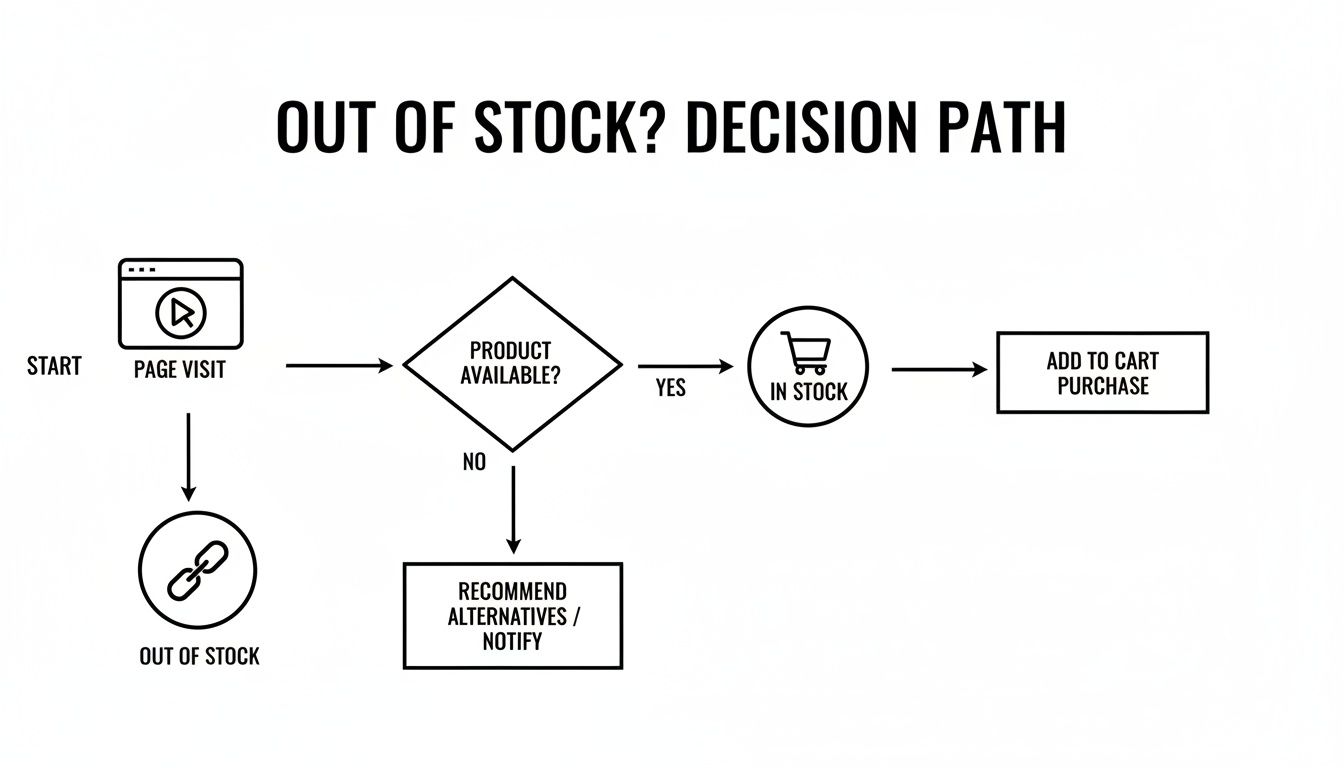
As you can see, a deliberate plan is essential to keep the customer engaged instead of letting them bounce.
If you've decided to keep sold-out items visible, your next step is to manage how they behave. Back in the product’s inventory settings, there’s a critical checkbox: "Continue selling when out of stock."
For most stores, leaving this box unchecked is the way to go. Once your inventory count hits zero, Shopify will automatically switch the "Add to Cart" button to "Sold Out." It’s clear, simple, and prevents accidental orders you can’t fulfill.
However, checking this box can be a game-changer. It essentially turns your product into a backorder or pre-order item. This is perfect for popular products you know are already on their way from your supplier. If you use this, be radically transparent. You must clearly state the expected shipping date on the product page to manage expectations and keep your customers happy.
For more deep dives into optimizing your online store, check out our in-depth guide covering everything you need to know about Shopify.
Pro Tip: Your Shopify theme has a huge say in how all of this looks on the front end. Some themes are smart enough to automatically gray out or strike through sold-out variants (like a size Small or the color Blue). Others might need a little nudge from a third-party app or a quick code tweak to get that clean user interface. Always check your theme’s settings first before you start installing apps.
An out-of-stock product page doesn't have to be a dead end. In fact, you can flip it into one of your best lead-generation tools. By setting up back-in-stock alerts, you move from passively losing customers to proactively recovering future revenue.
This simple tweak gives disappointed shoppers a clear next step. Instead of bouncing from your site to a competitor's, they can sign up for a notification the second that item is available again. It’s an incredibly effective way to build a list of high-intent leads who have already told you exactly what they want to buy.
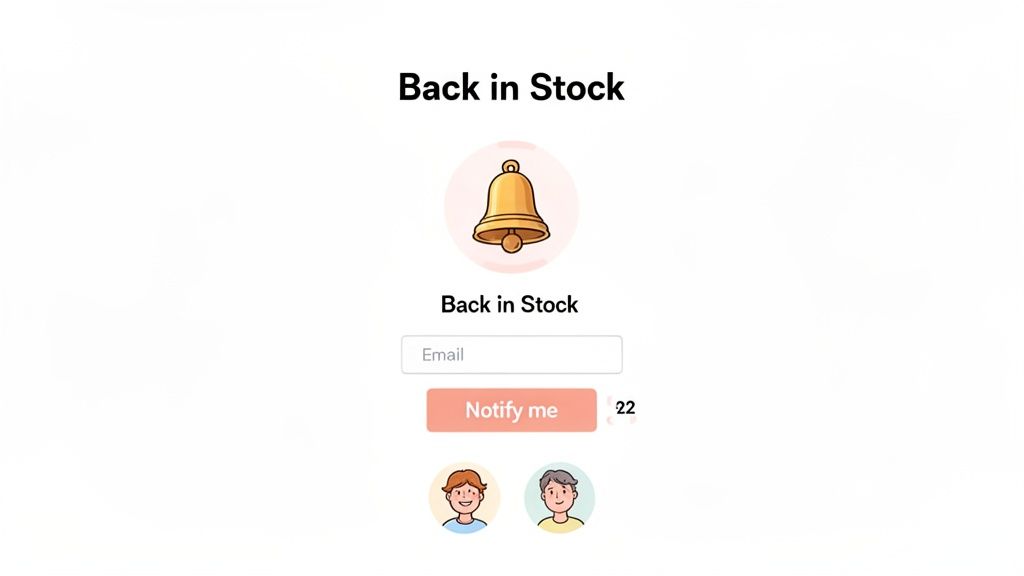
When it comes to getting these alerts up and running, you have a couple of great options. First, check your theme's documentation. Many modern Shopify themes have this functionality built right in, and it might just be a matter of flipping a switch in your theme customizer.
If your theme doesn't offer it, your next stop is the Shopify App Store. You'll find a ton of apps that specialize in this, often with features that go way beyond a basic email form.
The data from back-in-stock sign-ups is an absolute goldmine. Think of it less as a waitlist and more as a direct line into customer demand, helping you make smarter, data-backed decisions for your next purchase order.
Just slapping a notification form on the page isn’t enough—you need to make it compelling and effortless to use. The goal is to eliminate any friction and make signing up the obvious choice for anyone bummed out by a "Sold Out" button.
The design and copy you use matter. A clunky, poorly designed form feels like an afterthought and will kill your sign-up rate. For a deeper look at the tools that can help manage these processes, our guide on choosing the best inventory management app has some great insights.
This strategy also tackles a huge e-commerce headache: cart abandonment. Across Shopify, just over 70% of shoppers abandon their carts, a number that climbs to a staggering 78% on mobile devices. When customers see an item is out of stock, they often just give up. Clear restock notifications give them the certainty they need to come back and complete the purchase. You can find more details in this Shopify statistics report from chargebacks911.com.
By turning an "out of stock Shopify" problem into a promise, you keep customers engaged and ready to buy the moment that product is back on your shelves.
If you’re still manually counting stock, you’re playing a reactive game you’re destined to lose. It’s time to stop putting out inventory fires and start preventing them with a smarter, data-driven approach. This is about moving beyond simple stock alerts and into predictive inventory management, where you’re restocking items long before your customers even realize they’re running low.
The core idea here is to let your own sales data do the heavy lifting. Instead of just guessing how many units you'll need for the upcoming season, you can lean on automation to analyze past performance and give you a much clearer picture of future demand. This isn't just about dodging that dreaded out of stock Shopify page; it's about optimizing your cash flow so you’re not tying up money in products that are just going to sit there.
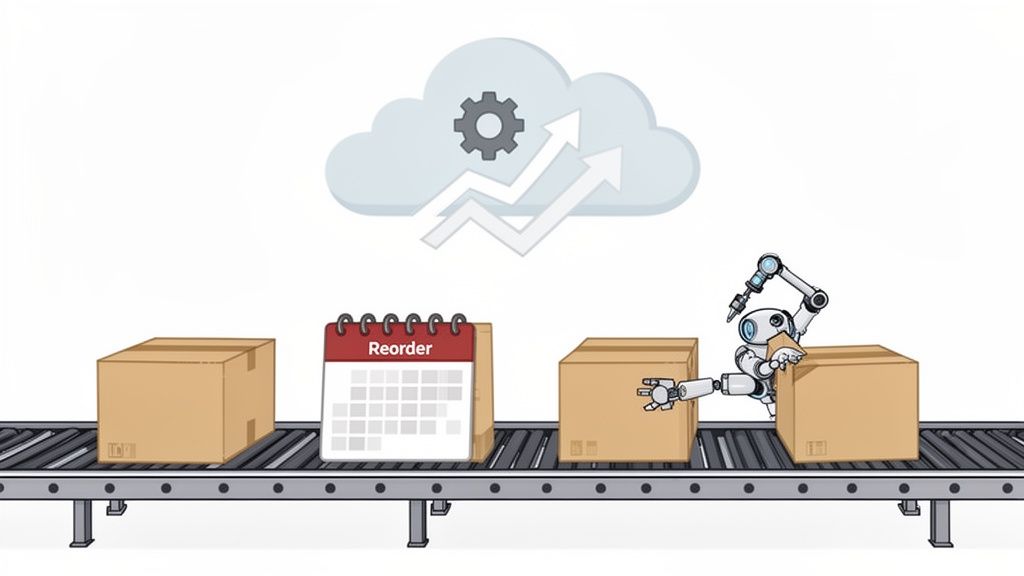
A reorder point is simply the stock level that tells you, "Hey, it's time to order more." Get this number wrong, and you're in trouble. Set it too high, and you're overstocked with cash tied up on the shelves. Set it too low, and you're facing stockouts and lost sales.
Automation helps you find that sweet spot by constantly looking at two crucial metrics:
A good automated system calculates these figures for you and adjusts them based on your real-time sales velocity. Your reorder points become dynamic, not just a static number you guessed last quarter. For smaller stores, embracing workflow automation for small business is often the key to getting this right and scaling without chaos.
Let's be honest: not every product is a home run. Some items, what we call slow-moving inventory, just sit there for months, collecting dust and tying up capital that you could be using to double down on your best-sellers. Trying to spot these manually is a tedious chore, and it's easy to miss things.
Automation tools can flag these products for you instantly. You can set simple rules—like "flag any SKU with fewer than 10 sales in the last 90 days"—and get a clean, data-backed list of products that need attention. This empowers you to make strategic moves, like running a flash sale or bundling a slow-mover with a popular item to finally get it off the shelves.
By automating the identification of slow-movers, you transform your inventory from a potential liability into a liquid asset. This frees up cash to double down on what’s working, fueling smarter and more profitable growth.
Imagine you run a fashion brand and you're prepping for the fall season. Last year, your "Autumn Plaid Scarf" sold out in just two weeks, but the "Midnight Blue Beanie" barely moved at all.
Without automation, you might just cautiously reorder a bit of both and hope for the best. With an automated inventory system in place, the whole process looks completely different.
This kind of proactive management means you’re ready for demand without gambling your capital. It’s a necessary evolution, especially when you consider how competitive the market has become. Between 2020 and early 2022, the number of Shopify stores grew by an incredible 201.53%. In a landscape that crowded, stores that aren't using data-driven inventory tools are at a massive disadvantage.
Once your store grows past a handful of products, updating inventory one by one just isn’t going to cut it. It’s a massive time sink and, worse, a recipe for mistakes. A single typo can lead to overselling or showing the wrong out of stock Shopify status, which is a quick way to lose a customer's trust.
This is the point where mastering Shopify’s bulk management tools goes from a “nice-to-have” to an absolute necessity. Instead of clicking through endless product pages, you can use Shopify’s built-in bulk editor or a good old-fashioned CSV import to update thousands of items at once. Think of these as your command center for large-scale inventory adjustments.
Shopify’s bulk editor is your go-to for making targeted changes quickly, all without ever leaving your admin dashboard. Let's say you just received a new shipment for three different t-shirt designs, each with five sizes. That’s 15 individual updates. Or, you can just filter for those products, pop open the editor, and update the "Inventory quantity" column for all variants in one clean view.
I find this method is perfect for: * Quick restocks across a specific collection or product type. * Price adjustments when you're running a category-wide sale. * Updating SKUs or barcodes for a batch of new arrivals.
The editor is fast and visual, but its real strength is its precision. You can get super granular, selecting specific product variants—like only the "Size Small" across all your hoodies—and apply changes just to them. This simple trick helps prevent the common and costly mistake of accidentally restocking a variant you’ve already discontinued.
For massive, complex updates, a CSV (Comma-Separated Values) file is your best friend. It’s basically a spreadsheet that holds all your product data. You export your current product list, make sweeping changes in a program like Excel or Google Sheets, and then re-upload it to Shopify.
This workflow is a lifesaver for overhauling entire product lines or syncing your inventory with a supplier's data file. For instance, if a supplier updates the costs for an entire brand, you can use a simple spreadsheet formula to adjust the prices for hundreds of products at once before importing the changes back in.
Crucial Tip: Please, please, please always work on a copy of your exported CSV file. A single formatting error, like a misplaced comma or a typo in a column header, can overwrite perfectly good data. Before uploading a huge file, I always test my changes on a single product first to make sure everything maps correctly.
One of the most persistent headaches for stores with lots of variants is "ghost inventory." This is when a product page shows as "in stock," but every single variant—like all the sizes or colors—is actually sold out. It creates a dead end for shoppers and makes your store look sloppy.
A CSV export makes finding these culprits easy. Just filter your data to find products where the total inventory is zero but the "Inventory policy" is still set to "deny." From there, you can either update their status to inactive or clean up the variants, ensuring your storefront accurately reflects what’s actually available for purchase.
Even with a perfect strategy, you're going to run into some tricky situations with out-of-stock products. It just happens. Let's walk through some of the most common questions I hear from merchants and get you some clear, practical answers.
Short answer: Yes, it absolutely can.
When you unpublish a product, that URL suddenly screams "404 Not Found" to Google. Any SEO authority or "link juice" you've built up for that page just vanishes into thin air. It’s like throwing away free marketing.
A much smarter play is to keep the product page live. Just clearly mark it as "Sold Out." This is your golden opportunity to turn a bummer for the customer into a win for you. Add a back-in-stock notification form right on the page and start collecting email addresses from people who are literally waiting to buy from you. This keeps the URL indexed and active, preserving all its SEO value.
Look, if you truly have to get rid of a product for good—maybe it’s discontinued permanently—don't just hit delete. Set up a 301 redirect. This tells search engines (and your customers) to go to a new, relevant page, like a similar product or the category page. It passes along most of the SEO value and prevents people from hitting a dead end.
Flash sales are pure chaos, and your inventory management has to be on point. It really boils down to two things: solid forecasting and crystal-clear communication.
Before you even think about launching the sale, you need to be buried in your analytics. Look at past sales data, identify your likely best-sellers, and stock up accordingly. During the sale itself, make sure your theme or an app is showing real-time inventory counts. Phrases like "Only 5 left!" do wonders for creating urgency while also managing expectations.
If something sells out faster than you expected (which is a good problem to have!), you need to move quickly:
The "best" app is the one that fits your store's specific needs and budget. There's no single right answer here.
For most stores just starting out, a simple, reliable app like 'Back in Stock ‑ Restock Alerts' gets the job done beautifully. It’s user-friendly and focuses on the core task of sending alerts.
But maybe your needs are a bit more complex. If you want to segment customers based on what they signed up for in Klaviyo, or if you need to manage inventory across multiple warehouse locations, you'll need a more powerful tool. Some email marketing platforms have this built-in, while specialized apps like 'Appikon Back in Stock' offer really robust, focused solutions with features like SMS alerts.
My advice? Always read recent reviews, double-check that it’s compatible with your theme, and make sure you understand the pricing before you install anything.
Your back-in-stock notification list is pure gold. It's not a guess; it's a literal list of customers telling you, "I want to give you money for this exact product." The more sign-ups an item has, the higher you should prioritize restocking it.
Beyond that direct feedback, dig into your Shopify Analytics. Head over to Analytics > Reports and see which products have historically been your top sellers. That historical data is a strong indicator of future performance.
If you want to get ahead of the game, inventory forecasting tools can analyze your sales history and market trends to predict which products are likely to be in high demand next. This helps you restock proactively, sometimes even before you run out.
Ready to stop guessing and start making data-driven inventory decisions? Tociny.ai offers AI-powered analytics and forecasting to help you prevent stockouts, identify slow-movers, and optimize your inventory for profitable growth. Join our private beta for early access and personalized guidance. Learn more and apply at Tociny.ai.
Tociny is in private beta — we’re onboarding a few select stores right now.
Book a short call to get early access and exclusive insights.