
At its heart, a simple inventory template in Google Sheets is just a pre-made spreadsheet built to track your stock levels, sales, and when you need to reorder. It’s the perfect, no-cost way for Shopify merchants to get a real handle on their inventory without wrestling with complex software.

Before we jump into formulas and fancy dashboards, let's talk about why so many successful Shopify merchants start their inventory journey right here, with Google Sheets.
For direct-to-consumer (D2C) brands, especially in fast-moving industries like fashion or wellness, jumping straight into dedicated inventory software often feels like using a sledgehammer to crack a nut. That stuff can be expensive, bloated with features you don't need, and surprisingly rigid.
A simple spreadsheet, on the other hand, is a different beast entirely. It offers a powerful mix of benefits that are just right for a growing business.
The real magic of using Google Sheets comes down to three things: it’s accessible, it’s completely customizable, and it costs nothing. Anyone on your team can jump in and update the sheet from any device, which means your data is always live. You’re not stuck in a vendor's rigid workflow; you can add columns for batch numbers, supplier info, or seasonal SKUs whenever your business needs it.
This flexibility is a total game-changer. Imagine you run a clothing boutique and need to track a limited run of summer dresses. Instead of fumbling through a clunky software interface, you just add a few new rows to your sheet. Simple. Or maybe you're a supplement brand and need to track expiration dates—just add a column and use some conditional formatting to flag products getting close to their limit.
Key Takeaway: Google Sheets lets you build an inventory system that actually mirrors how your business works, not the other way around. That’s a level of adaptability that many pricey, one-size-fits-all software solutions just can't match.
For Shopify merchants, the benefits are clear and immediate. Here’s a quick breakdown:
| Benefit | Description for Shopify Merchants |
|---|---|
| No Cost | Get started without any financial investment, freeing up capital for marketing or product development. |
| Total Customization | Add columns for SKUs, supplier info, landed costs, or anything else specific to your products and workflow. |
| Real-Time Collaboration | Your whole team—from warehouse staff to customer service—can view and update the same sheet simultaneously. |
| Easy Integration | Connect your sheet to other Google tools or use services like Zapier to automate basic data entry from Shopify. |
| Scalability | It's the perfect starting point. When you outgrow it, you'll have a deep understanding of what you need in paid software. |
This approach allows you to build a solid foundation for inventory management without the overhead, giving you the insights you need to grow smarter.
Stockouts and overstock are the twin demons of e-commerce, and they quietly bleed profits from your business. A well-organized Google Sheet is your first line of defense.
The financial stakes are higher than most merchants realize. Back in 2018, as Shopify was rocketing past 600,000 stores, a staggering 43% of merchants reported that stockouts were costing them an average of $1.1 million annually in lost sales. You can read more about how merchants managed these early challenges with simple, effective tools.
By giving you a clear, centralized view of what you have, what you've sold, and when you need to reorder, a spreadsheet tackles this problem head-on. It turns inventory management from reactive guesswork into a proactive, data-driven process. That foundation is absolutely essential for building a resilient and profitable Shopify store, long before you ever need to think about a more advanced system.
Alright, let's get our hands dirty and build the engine of your new inventory system. This isn't just about downloading a file; it's about building a simple inventory template in Google Sheets that actually works for your Shopify business. A little thought here will save you a ton of headaches down the road.
First thing's first: open a new Google Sheet. We're going to start by defining the columns. Each one serves a critical purpose, acting like a vital sign for your products. Without this information, you're just guessing.
One of the most common mistakes I see is people forgetting a key column, which just leads to messy, unreliable data later on. To make this practical, let's imagine we're a home goods store selling ceramic mugs in different colors. This is a perfect real-world example because it forces us to deal with product variations—a huge pain point for many sellers.
Here are the absolute must-have columns to start with:
MUG-BLU-12 for a 12oz blue mug and MUG-GRN-12 for the green one. Never reuse a SKU. Seriously.Setting it up this way lets you group all variations of a single product together, which is far easier to manage than creating separate line items for every single option.
With the basic product info locked in, we now need columns that track inventory levels as they change. These are the numbers you'll be checking every single day.
These next few columns are what turn your simple sheet into a powerful tool:
Here’s a quick look at how this foundational layout comes together.
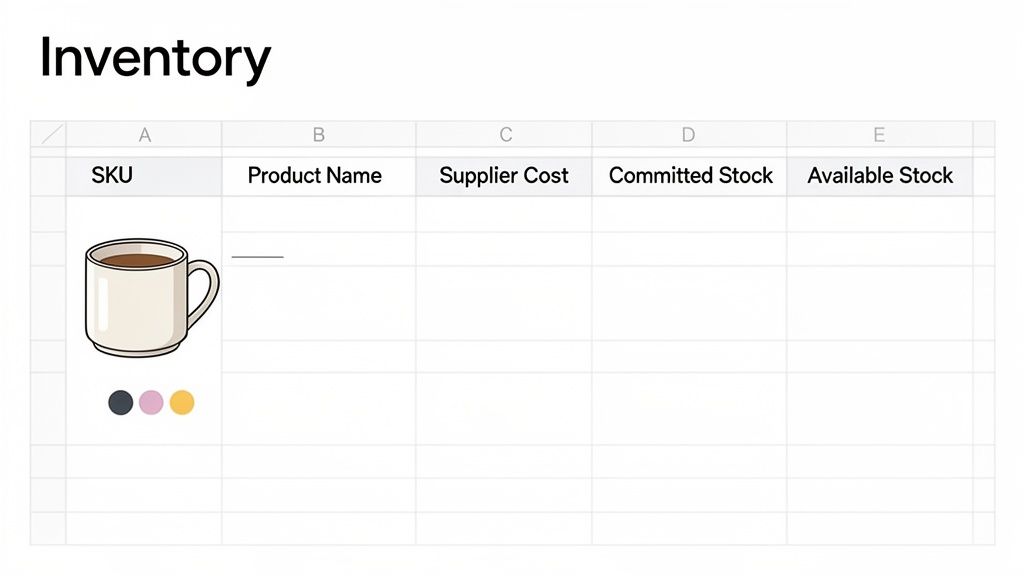
This clean structure gives you an immediate, actionable snapshot of your entire product catalog.
It’s no surprise that so many businesses stick with this method. By 2023, over 70% of small to mid-sized Shopify merchants—that's roughly 1.2 million stores—were still using spreadsheets for inventory. The main reason? Avoiding the steep cost of dedicated software, which often averages $99 per month.
To make your sheet much easier to work with, freeze the header row. Go to
View > Freeze > 1 row. This locks your column titles in place so they're always visible as you scroll. It’s a small trick that makes a massive difference. For more organizational tips, you can also check out our detailed guide on creating an effective inventory tracking sheet.
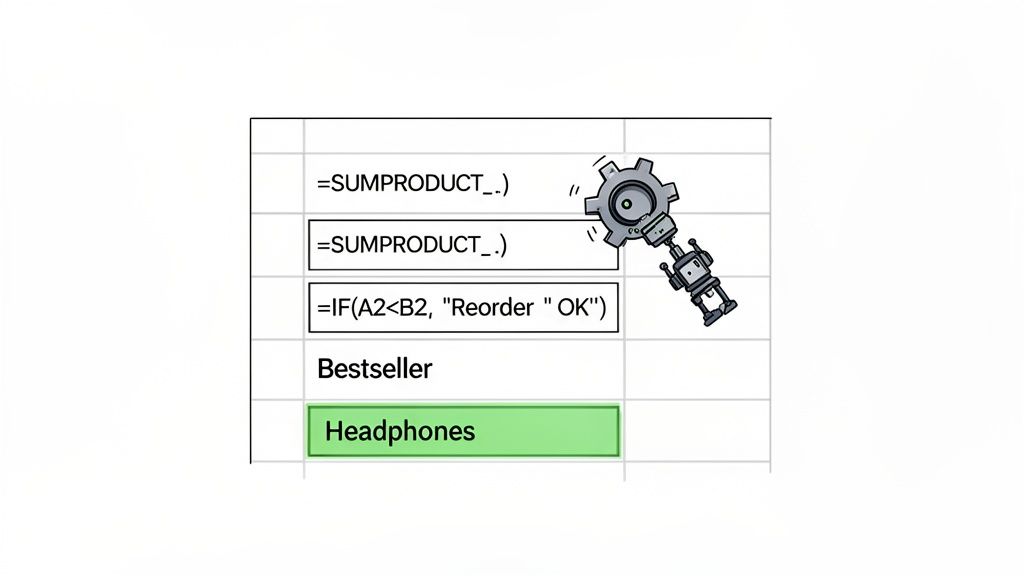
A static spreadsheet is a good start, but let's be honest—it's just a digital list. The real magic happens when your sheet starts doing the heavy lifting for you. We’re going to plug in a few powerful, beginner-friendly formulas to turn this simple inventory template into a seriously smart tool.
This is where you slash manual errors and get hours of your life back. Instead of squinting at rows of data, you’ll get critical business insights and stock alerts at a glance.
Knowing how much cash you have tied up in stock is non-negotiable for financial planning. But manually multiplying cost by quantity for every single SKU? That’s a recipe for headaches and mistakes.
Enter the SUMPRODUCT formula. It’s a lifesaver.
Let's say your supplier costs are in column E (from E2 down to E100) and your "Stock on Hand" counts are in column G (from G2 to G100).
Just pop this formula into a cell:
=SUMPRODUCT(E2:E100, G2:E100)
In one clean step, that formula multiplies the cost of each item by its quantity and adds it all up. Boom—you've got a single, accurate number representing the total value of your inventory.
One of the biggest anxieties for any Shopify merchant is knowing exactly when to reorder a product. Too early, and you're tying up cash. Too late, and you're dealing with angry customers and lost sales.
A simple IF statement can create a dynamic "Reorder Status" that screams at you when it's time to act.
First, you'll need a "Reorder Point" column (let's call it column J). This is where you decide the minimum stock level for each SKU. For example, maybe you never want your bestselling headphones to drop below 20 units.
Now, create a new column called "Reorder Status" (column K) and plug this formula in:
=IF(G2<=J2, "REORDER NOW", "OK")
Drag that formula down the entire column. Instantly, it checks every single product. If the stock in G2 dips to or below the number in J2, it flags it with "REORDER NOW." Otherwise, it just says "OK." This is the kind of simple automation that prevents those gut-wrenching stockouts on your most popular items.
Pro Tip: Your reorder point shouldn't be a random guess. A solid reorder point is based on your sales velocity and supplier lead times. It involves calculating your safety stock to buffer against unexpected spikes in demand. To really nail this down, our guide on how to calculate safety stock breaks it down into a clear, step-by-step process.
By handing these calculations over to formulas, you get to stop being a data entry clerk and start being a strategic business owner. You're no longer just tracking numbers; you're building a system that actively helps you manage your store and grow smarter.
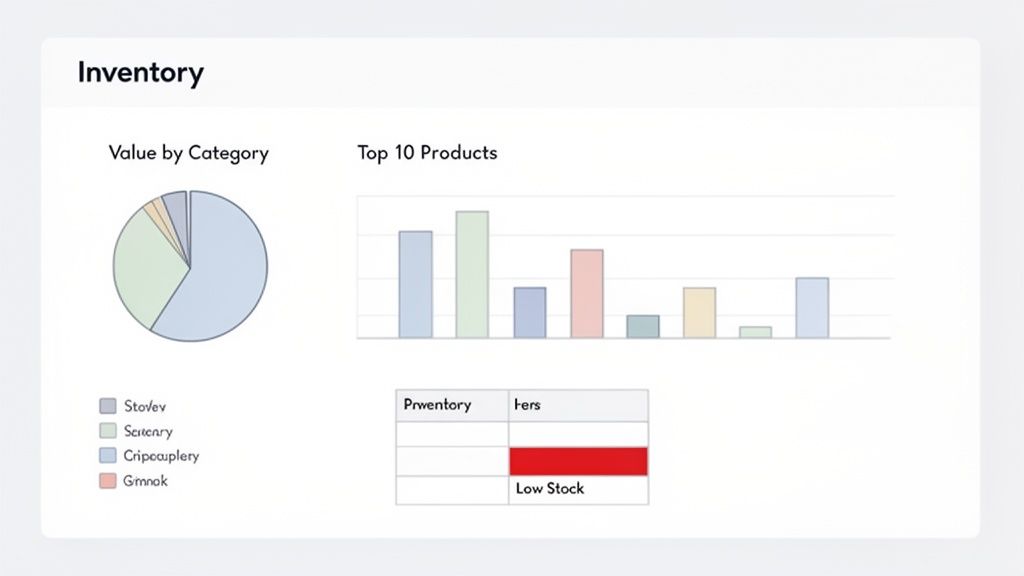
Numbers on a spreadsheet are just that—numbers. A sheet packed with inventory data is a great start, but the real magic happens when you turn that data into clear, visual signals. That’s how you start making faster, smarter decisions for your Shopify store.
The goal here is to shift from reactive data entry to proactive business management. Visual cues instantly grab your attention and point you to what matters most, whether it's a looming stockout or a product category that’s tying up way too much cash. It's all about staying ahead of the curve.
One of the quickest and most satisfying wins in any Google Sheets inventory template is using Conditional Formatting. This awesome feature automatically changes a cell's color based on what’s inside it, creating a visual alert system that's impossible to miss.
Think about it. Instead of scanning your "Reorder Status" column, hunting for the text "REORDER NOW," you can make the entire row for that product flash red. It’s an immediate signal that requires zero brainpower to spot.
Here’s how to get it done:
Format > Conditional formatting in the menu.=$K2="REORDER NOW" (this assumes your "Reorder Status" is in column K).Just like that, any product hitting its reorder point will instantly light up. This simple trick transforms your static sheet into a dynamic, at-a-glance action plan.
A dashboard gives you that crucial 30,000-foot view of your entire operation. Just create a new tab in your sheet, name it "Dashboard," and start building out a few essential charts. This visual summary helps you spot trends you’d never catch by just scrolling through rows and rows of data.
A visual dashboard turns complex data into a clear story. Instead of digging through numbers, you can instantly see your bestsellers, identify your most valuable product categories, and spot slow-moving stock before it becomes a problem.
To get started, try building these two charts:
The e-commerce boom that followed the 2020 pandemic really hammered home the need for this kind of visibility. As sales skyrocketed, an estimated 65% of D2C founders found themselves struggling with inventory tracking. This led to a huge rise in spreadsheet-based solutions, which helped cut stockouts by up to 28%. You can discover more insights on how merchants adapted on litcommerce.com. Visualizing your data this way turns your spreadsheet from a simple logbook into a strategic command center for your business.
A great template is more than just columns and formulas. The real magic happens when it slips seamlessly into your daily routine, connecting your Google Sheet directly to your Shopify operations. This is how a simple spreadsheet transforms from a static list into a living, breathing tool for your business.
The goal here is to build a simple, repeatable process for every time your stock levels change. You want it to become muscle memory. Whether you're unboxing a new shipment from your supplier or packing up a customer's order, the update process needs to be second nature.
Let's say a fresh batch of your best-selling ceramic mugs arrives. Your first move, before anything else, should be updating the "Stock on Hand" column in your Google Sheet. Only after that do you update the inventory in your Shopify admin. This "sheet-first" workflow establishes your template as the ultimate source of truth.
To make life even easier, lean on Shopify's built-in export features. By periodically exporting your product or order data as a CSV, you can quickly double-check the numbers against your sheet's "Sold" column. It's a simple audit that can catch a small discrepancy before it spirals into a major stock-out or a shelf full of unsold products.
This sheet also evolves into your command center for planning purchase orders. The moment a product's "Reorder Status" flips to "REORDER NOW," you have everything you need in one row—SKU, supplier cost, current stock—to confidently place that new order.
Key Insight: Consistency is everything. A template is only as good as the data you feed it. By creating a simple, non-negotiable workflow for every stock movement, you ensure your data remains reliable and your business decisions are always based on accurate numbers.
To help you get started right away, we've put together a free, ready-to-use simple inventory template for Google Sheets. It comes pre-loaded with all the columns, formulas, and conditional formatting we've covered. It's built for Shopify merchants who need clarity and control without the headache.
You can learn more about it and grab your own copy from our detailed guide on creating a template for your inventory list.
Once your inventory is dialed in, it might be a good time to elevate your product listings. Investing in professional Shopify product photography services can make a huge difference in attracting and converting shoppers.
As your brand grows, there will come a time when manual updates just can't keep up. When you're ready to graduate from spreadsheets to something more powerful, AI-driven tools like Tociny.ai are the next logical step. Tociny.ai dives into your sales data to deliver smart, actionable recommendations, helping you automate reordering and truly optimize your stock for maximum profit.
Even the simplest tools can throw you a curveball. When it comes to managing inventory with a basic Google Sheets template, I see the same questions pop up from Shopify merchants all the time. They usually boil down to its limits, what it can really do, and how to use it without making a complete mess of things.
Let's dig into some of the most common ones.
This is usually the first question people ask, and it's a good one. The worry is that you'll build out your beautiful sheet only to have it grind to a halt a few months later.
The good news is that the limit isn't really about the number of products, but the complexity of your formulas. A standard Google Sheet can easily manage several thousand SKUs—we're talking 5,000 to 10,000 rows—without you noticing any real performance issues. If you're just using simple functions like SUM and IF, your sheet will stay snappy. The trouble starts when you layer on complex array formulas or dozens of VLOOKUPs. That’s when you’ll start to feel the lag.
Think of it this way: the moment your sheet starts feeling slow or clunky is a signal. It's your business telling you it’s probably time to graduate from manual tracking to a proper inventory platform.
Okay, let's talk about the biggest headache: manually updating sold stock. It’s tedious and where most errors happen. So, can you automate it?
Yes, you can bridge the gap between your Shopify store and your Google Sheet. Tools like Zapier or Coupler.io are built for this.
These services act as the middleman. You can set up a workflow—or "Zap"—that automatically pulls your daily sales from Shopify and drops them into a dedicated "Sales" tab in your sheet. A simple formula can then reference that data to update your stock levels automatically. It takes a bit of work to set up, but it dramatically cuts down on manual entry. For true, real-time sync, though, nothing beats a dedicated inventory solution.
If there’s one thing that will render your entire inventory template useless, it's this: inconsistent data entry. A spreadsheet is only as good as the numbers you feed it.
The single biggest mistake is not having a rigid, non-negotiable process for updates. If one person logs a new shipment one way, and another team member forgets to update sales for a day, the numbers will start drifting from reality. Before you know it, your sheet is lying to you, and its whole purpose is defeated.
To make any simple inventory template in Google Sheets work, you have to create a crystal-clear workflow. Then, you have to make sure every single person on your team follows it to the letter. That discipline is what makes accurate inventory control possible.
As your brand grows, manual tracking will eventually become a bottleneck. When you're ready to move from spreadsheets to smarter, AI-powered forecasting, Tociny.ai is the next step. We help you automate reordering and optimize your stock for maximum profit. Get early access to Tociny.ai.
Tociny is in private beta — we’re onboarding a few select stores right now.
Book a short call to get early access and exclusive insights.